Interactive Applications
OnDemand provides several ways to run interactive GUI applications on the cluster without X11 forwarding issues.
Types
There are multiple types of Interactive sessions, though their usage is interchangeable.
Desktop
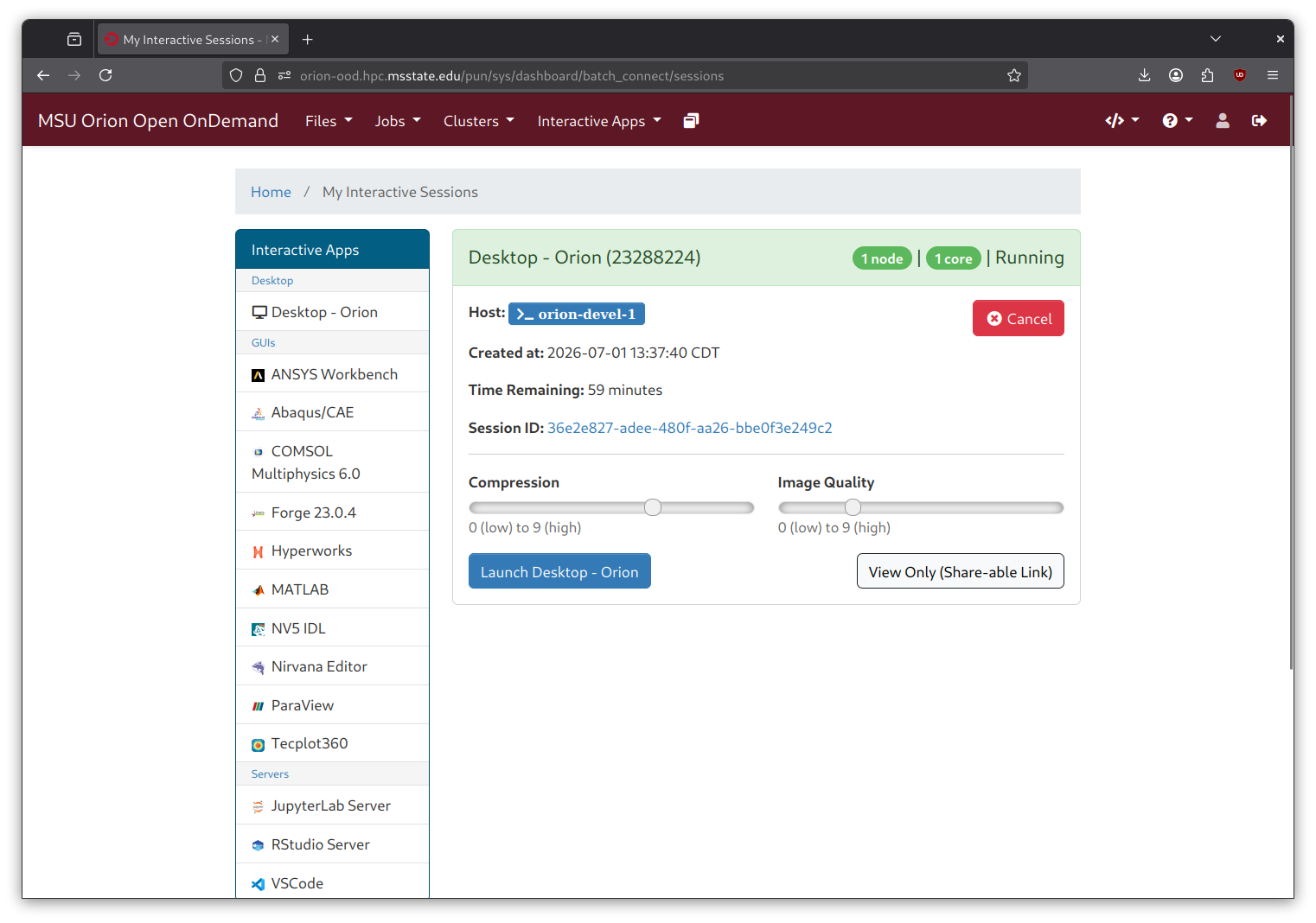
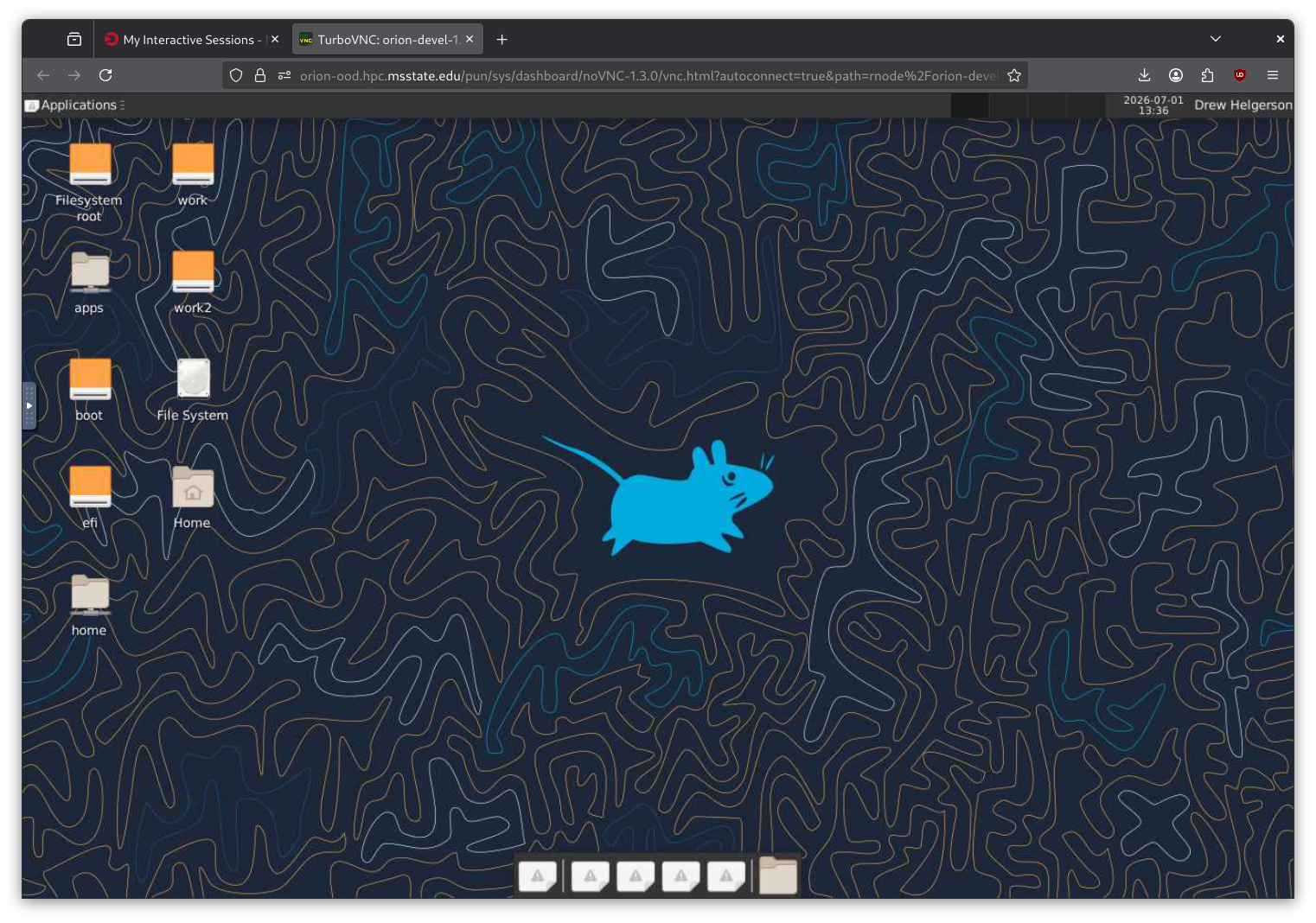
A virtual desktop session gives you a full desktop environment running on a compute node. This is ideal for running multiple GUI applications together or when you need a complete desktop workspace. The desktop runs as a Slurm job, so you can specify resources (nodes, processors, time) and it will be scheduled like any other batch job.
Users can connect via VNC directly in your web browser with adjustable image quality and graphics settings.
GUIs
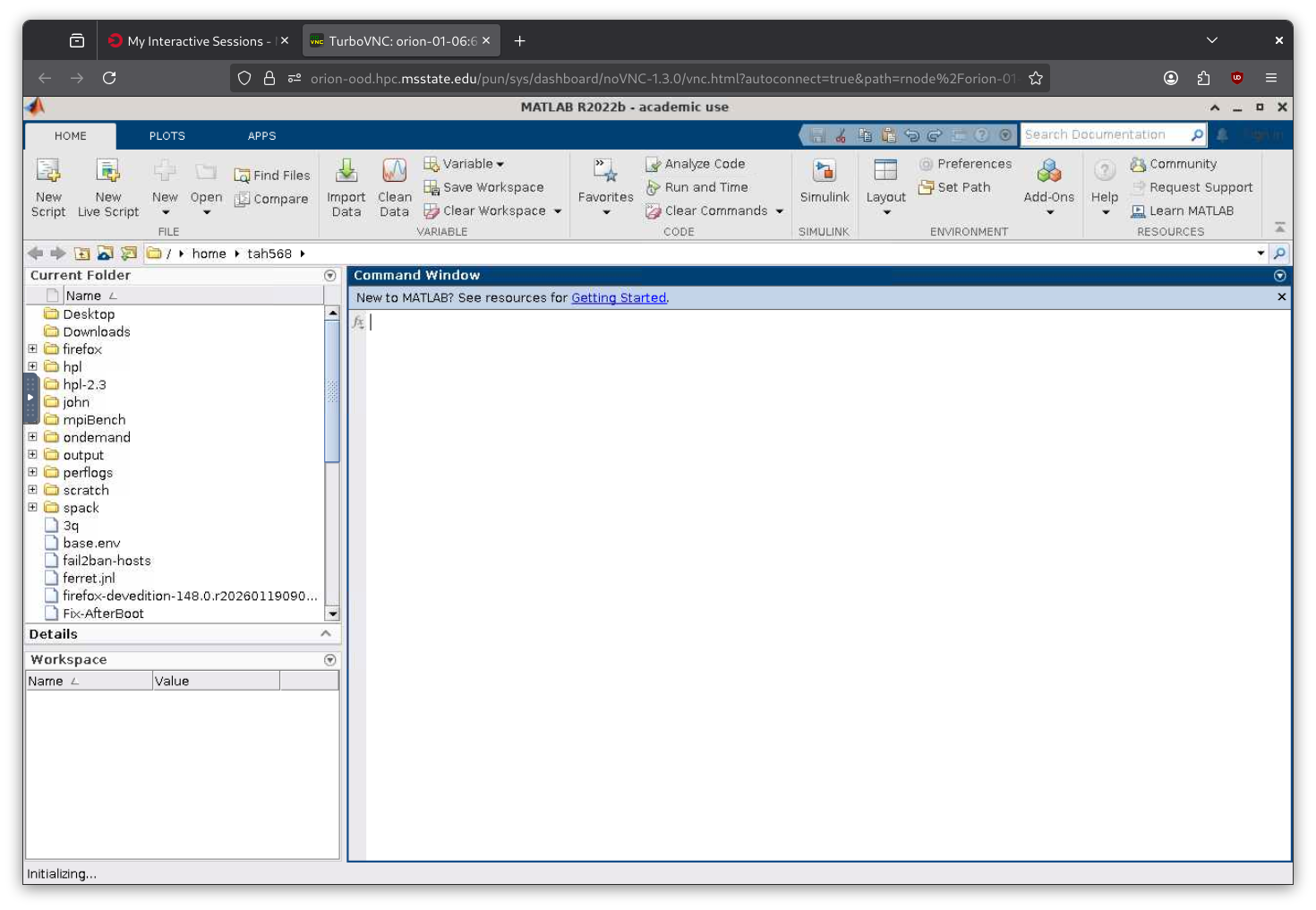
Standalone GUI applications (like MATLAB, RStudio, or ParaView) run on top of a lightweight window manager without the overhead of a full desktop environment. They have application-specific startup scripts optimized for OnDemand launch.
These are launched the same way as virtual desktops—through the Interactive Apps menu—but provide a single application window rather than a full desktop.
Servers
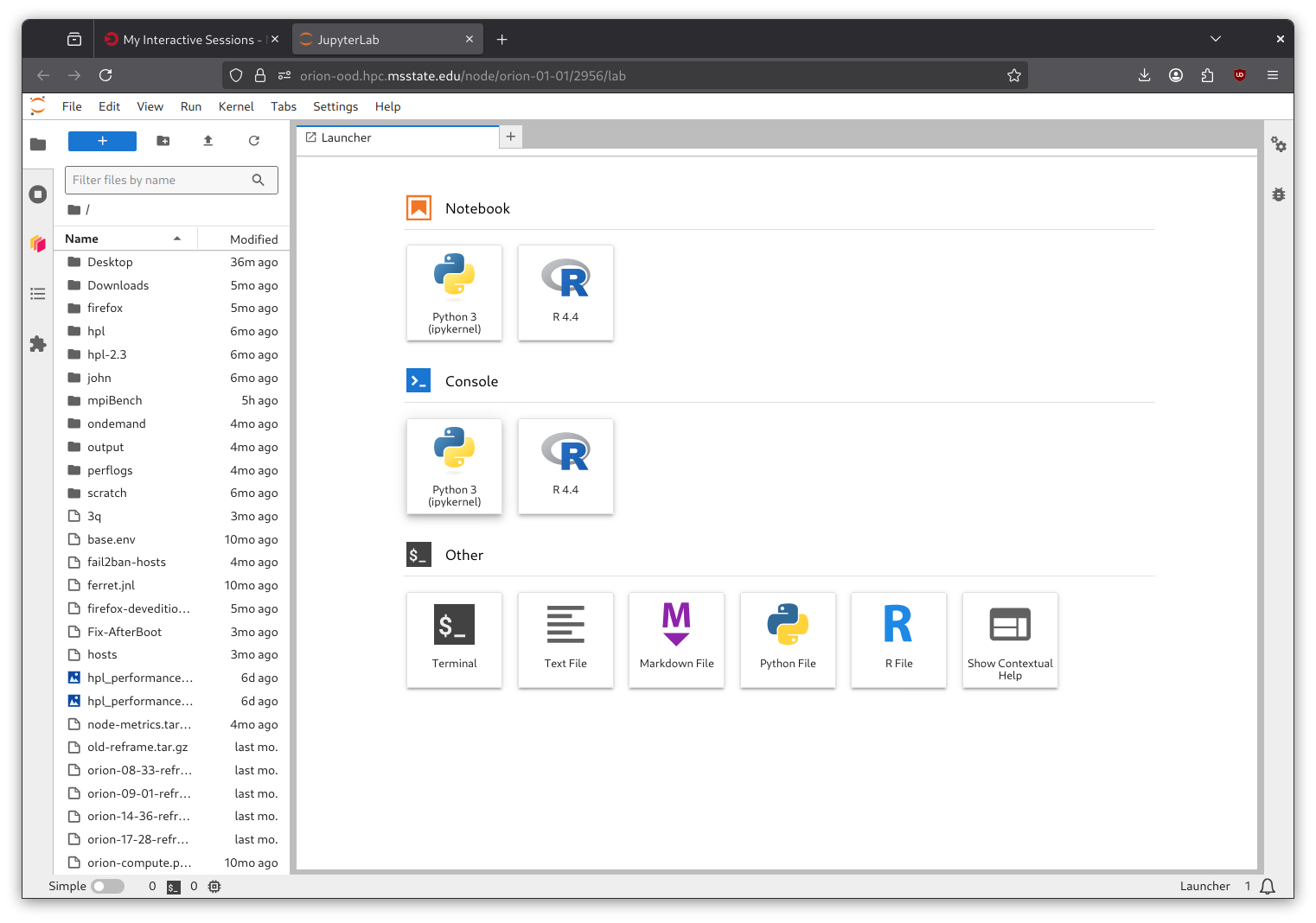
Server-based applications render directly in your browser without requiring a server-side GUI. This makes web-based applications and tools with WebGUI interfaces particularly convenient to run on clusters.
From a user perspective, launching servers works identically to desktops and GUI applications—select from the Interactive Apps menu, configure parameters, and launch.
Launching an Interactive App
Click the Interactive Apps dropdown menu in OnDemand
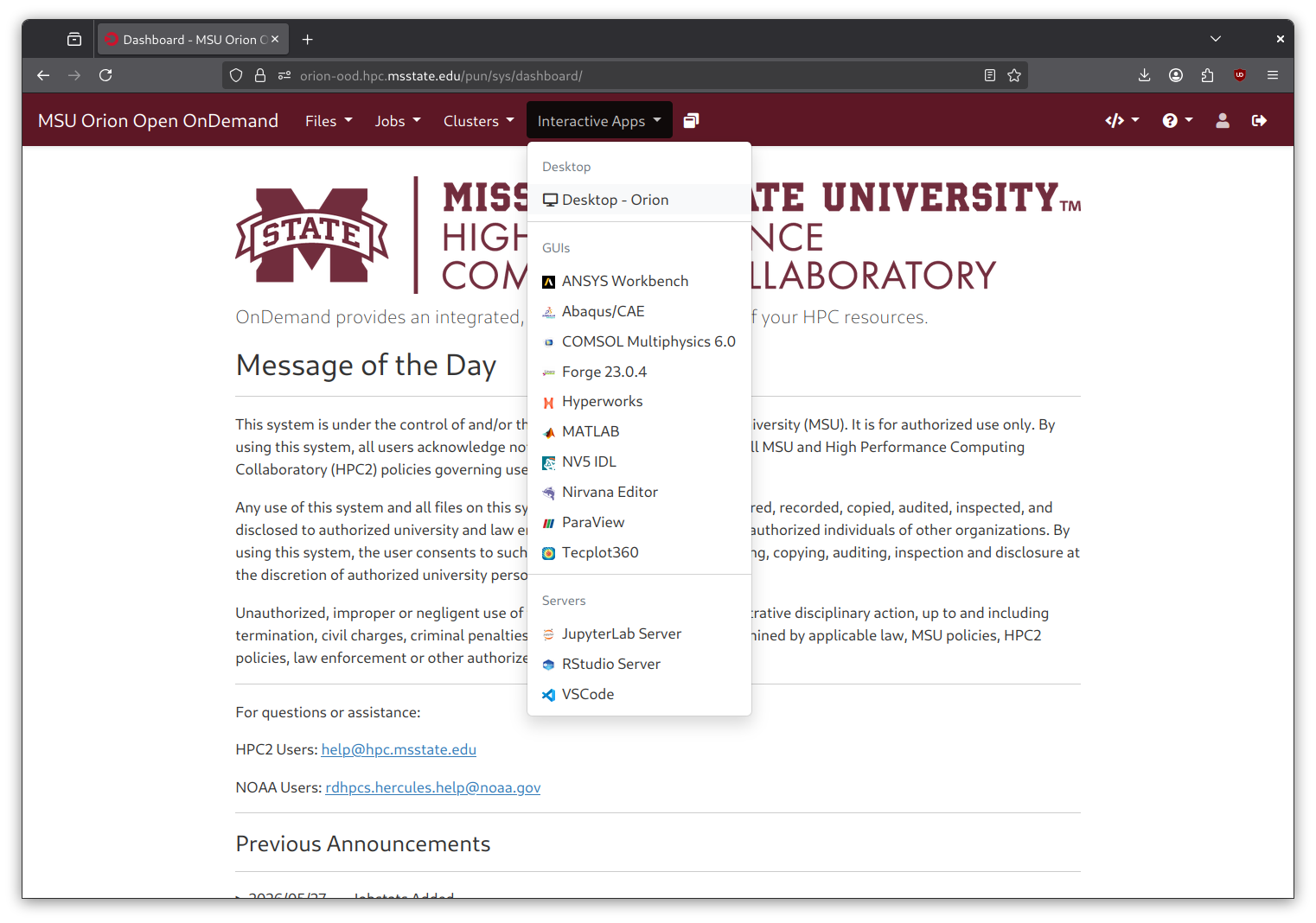
Select the application type:
Desktops: Full virtual desktop sessions
GUIs: Standalone graphical applications
Servers: Browser-rendered web applications
Configure the job parameters:
Slurm Account
Partition (e.g.,
developmentfor desktops)QOS (Quality of Service)
Duration
Nodes and processors
Different applications may have different or application-specific parameters
Important
For GPU jobs, make sure to specify the correct partition and supply the required --gres=... line in the ‘Additional Slurm Parameters’ field.
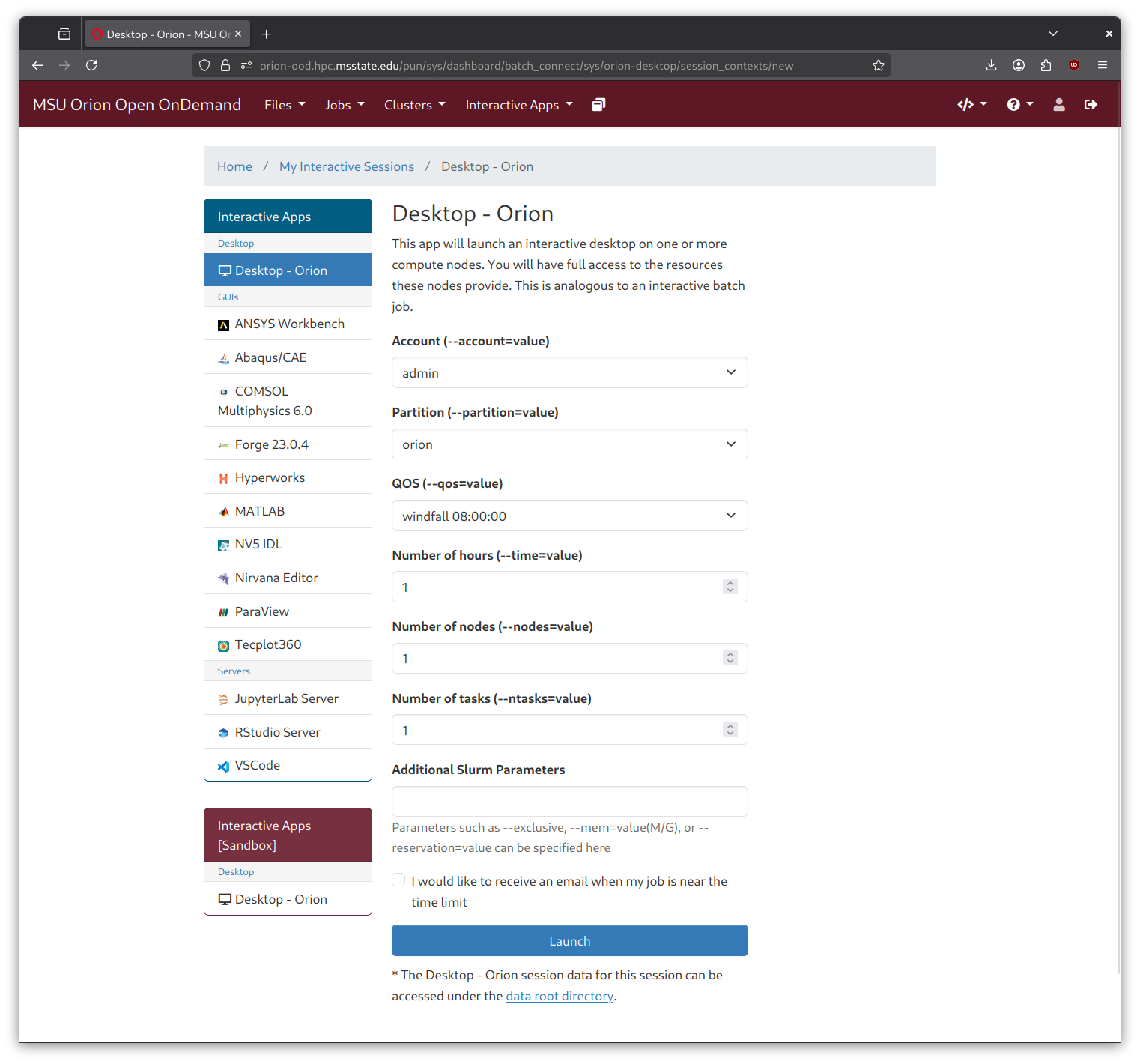
Click Launch to submit the job to the scheduler
On the Interactive Sessions page, monitor your queued/running sessions
Adjust VNC settings (image quality, graphics) if applicable
Once the job starts, click the Launch button for your session
The application then opens in your browser (Pictured above for each type)